How to handle errors and problems in a service
In this guide we will be looking at when and how to choose the right pattern or component when something stops users from continuing through a service.
Different teams may use the word “error” in different ways. For example, developers may think of errors as code exceptions, while designers may think of validation errors. Users do not usually make this distinction. They need to know what happened, whether they can do something about it, and what to do next.
The Unified Design System provides different components and patterns for different situations. This guide helps you choose the right one.
When to check for problems
The core principle is:
Check when the user asks the service to move them forward, not while they are still working
Check for problems at the point where the user clearly indicates that they are ready to continue, submit, or complete a task.
Do not show validation errors while the user is still entering information, moving between fields, or reviewing what they typed. This can be overwhelming and may make the service harder to use.
For example, check for problems when the user:
- clicks Continue on a question page
- clicks Save and continue on a task list or hub page
- clicks Submit on the check your answers page
Validation errors
Run validation after the user clicks Continue or another action that means they are ready to move on.
Eligibility checks during the journey
Run eligibility checks when the service has enough information to know whether the user can continue.
This may be:
- after the user signs in
- after the user answers a question that affects eligibility
- before showing the check your answers page
- before accepting the final submission
Checks on task lists, hub pages and grouped pages
Some pages do not ask a single question, but still need to check whether the user has completed enough information to continue.
For example, a task list, hub page, or “add another” page may need to check that the user has:
- completed all required tasks
- added at least one item
- added no more than the maximum number of items
- completed all required details for each item
Run these checks when the user selects Continue, Save and continue, or another action that means they are ready to move on.
What to show the users
The UDS has several components and patterns to help users fix problems.
Start with what the user can do next
Before choosing a component or pattern, ask:
Can the user do something in the service to fix the problem?
If the user can fix the problem, keep them in the service and show them where to fix it.
If the user cannot fix the problem in the service, show a page that explains what happened and what they can do next.
When the user’s answers are missing, incomplete, or invalid
Use the error summary when the user needs to correct something before they can continue.
Use the error message as well when the problem is connected to a specific input.
For example, use an error summary and error message when:
- a required field is empty
- a date is in the wrong format
- a number is outside the allowed range
- a file is too large
- the user selected “Other” but did not enter more details
- the user cannot continue because a business rule has been violated and they can fix it by changing an answer
- when a task has not been completed
In these cases, the user’s answer is missing, incomplete, or invalid.
Here are some examples:
Example of validation error on a question page
There is a problem
Example of a Task List page with errors not all tasks completed
There is a problem
Complete the section on your contact details Complete the section on medical information
Service name
Application incomplete
You’ve completed 3 of 5 sections.
| Company information with status COMPLETED | COMPLETED |
| Your contact details with status IN PROGRESS | IN PROGRESS |
| List convictions with status COMPLETED | COMPLETED |
| Provide financial evidence with status COMPLETED | COMPLETED |
| Give medical information with status CANNOT START YET | CANNOT START YET |
Example of a Task List page with business error
There is a problem
Service name
Application complete
You’ve completed 4 of 4 sections.
How to show the error summary
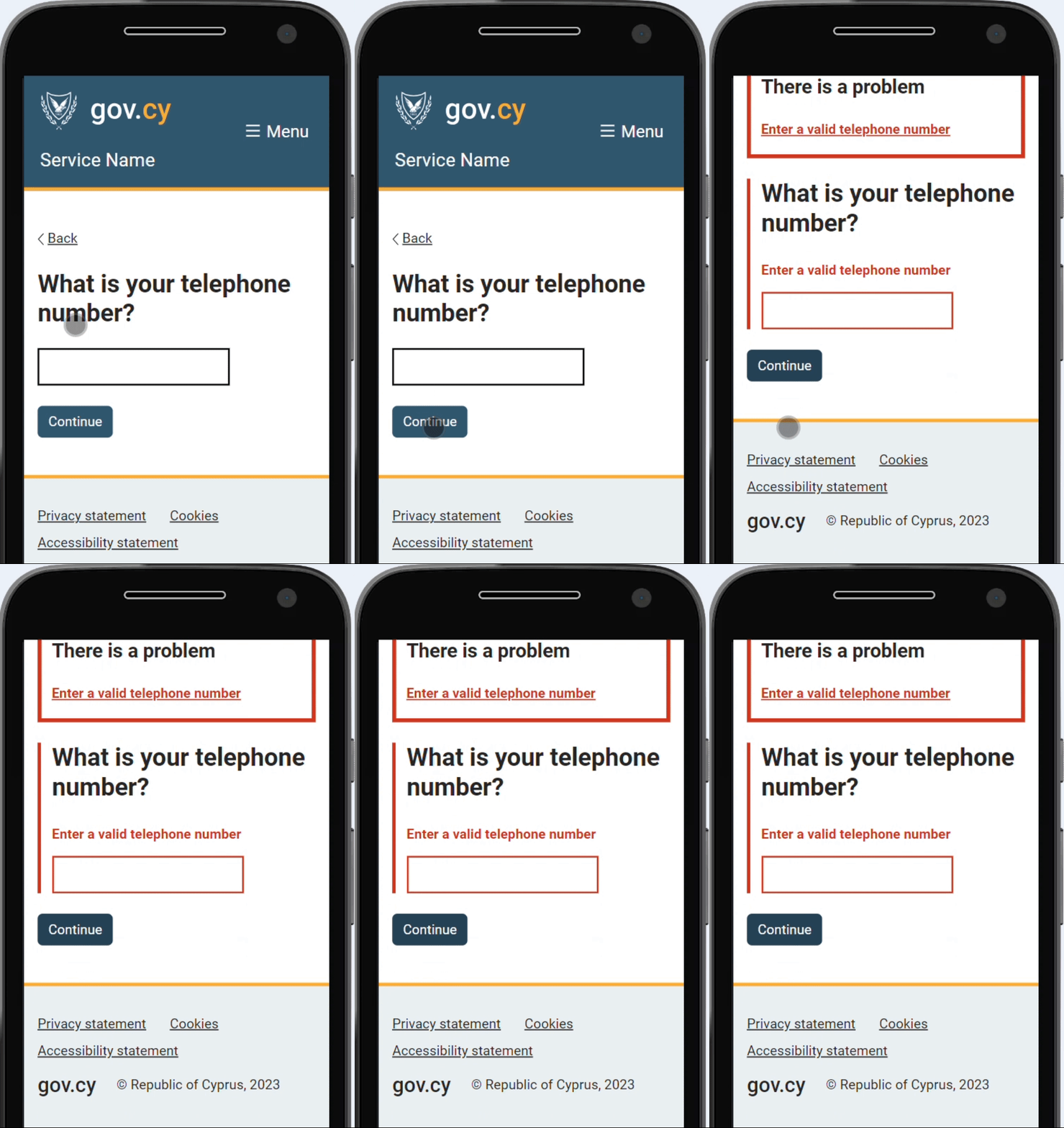
Simply display the error summary on the page is not enough. You also need to:
- move the keyboard focus to the error summary heading using a hashed link (for example
#error-summary-heading). This will draw the attention to the users that there is an a problem. Sighted users will be navigated to the error summary area on the page, and screen readers will read out that there is a problem - include the attribute
role="alert"on the error summary heading (<h2>) - include the heading ‘There is a problem’ in English and ‘Υπάρχει πρόβλημα’ in Greek
- if there is a validation error on a field, use use linking to an element on the same page to link each error to the fields that have validation errors
- make sure the error messages in the error summary are worded the same as those which appear next to the fields with errors
- if there is a business rule, link each error to the ‘change’ link or relevant page where the user can correct the violation.
For more guidance on how to show the error summary, see the error summary component - how it works.
When the user is not eligible
Use a Cannot use the service page when the user cannot use or continue with the service because they do not meet the eligibility rules.
For example, use this pattern when:
- the user is not registered in a required register
- the user does not have the required role or authorisation
- the user’s profile type cannot use the service
- an eligibility check shows that the user cannot use the service
Example:
Your citizenship is not Cypriot
To use this service, you need to be a Cypriot citizen.
If you think that there is a mistake in our records, please visit your nearest District Administration Office.
When a user becomes ineligible during the journey
Sometimes the user gives a valid answer that makes them ineligible.
For example, a service may only be for people who live in Cyprus. If the user answers that they live outside Cyprus, the answer is valid, but the service is not for them.
In the normal question flow, use a Cannot use the service page.
Include a link to change the answer if the user may have made a mistake.
Example:
When the user is on the check your answers page
If the problem is found on the check your answers page and the user can fix it by changing an answer, use an error summary.
This can happen because web services are asynchronous. Ideally, users should not reach the check your answers page with answers that make them ineligible, but it can happen.
The error summary should link to the answer the user needs to change.
Use a cannot use the service page from the check your answers page only when the user cannot fix the problem by changing an answer.
Example of validation error on the check your answers page:
There is a problem
Complete the section on your contact details Complete the section on medical information
Check your answers before submitting your application
- Contact details
- Enter contact details
- Medical information
- Enter your medical information
When the service gets an unexpected response
Sometimes a service depends on an API or another system to continue the journey.
If the API or system returns an unexpected response, times out, or cannot be reached, do not show an error summary unless the user can fix the problem by changing something in the service.
Use a there is a problem with the service page when the problem is unexpected and the user cannot fix it. This pattern is for unexpected service problems and should be used instead of showing technical messages like 500, bad request, or API error.
For example, use a there is a problem with the service page when:
- an API does not respond
- an API returns an unexpected format
- an API returns an error that is not mapped to a user-facing eligibility or business rule
- the service cannot save, load, upload, download, or submit because of a system problem
- the service cannot confirm whether the user is eligible
Do not use an error summary for these problems, because there is no answer or action in the page that the user can correct. Error summaries are for validation errors or other violations that the user can fix.
If the API response represents a known business rule, show the relevant pattern instead. For example:
- if the response means the user is not eligible, use a cannot use the service page
- if the service is deliberately unavailable, use a service unavailable page
- if the user needs to change an answer on the check your answers page, use an error summary
Choose the right pattern or component
Here is a summary of the patterns and components that can be used to handle errors and problems.
| Situation | Use |
|---|---|
| The user left a required field empty | Error summary and error message |
| The user entered an answer in the wrong format | Error summary and error message |
| The user gave a valid answer that stops the normal journey | Cannot use the service pages |
| The user can fix an issue from the check your answers page | Error summary |
| The user left a task unfinished on a task list | Error summary |
| The user cannot fix an eligibility issue | Cannot use the service pages |
| The page or URL does not exist | Page not found pages |
| The service is intentionally unavailable | Service unavailable pages |
| There is an unexpected technical problem | There is a problem with the service pages |
| An API or system returns an unexpected response that the user cannot fix | There is a problem with the service pages |
Do not use
Do not use:
error messagesfor eligibility failureserror summariesfor planned service downtimecannot use the service pagesfor technical problemspage not found pagesfor users who are not eligibleservice unavailable pagesfor validation errors- vague headings like “Error”, “Access denied” or “Something went wrong” when a clearer explanation is possible
Accessibility
Make sure users can understand what happened and what they can do next.
When using error messages and error summaries, follow the accessibility guidelines for error messages and error summary.
When using a page pattern:
- use a clear
H1 - explain the problem in plain language
- include a next step when there is one
- include contact information when users may need help